

Fleet overview
The Fleet page (/clusters) is your main dashboard. It shows all clusters in your organization with live status:
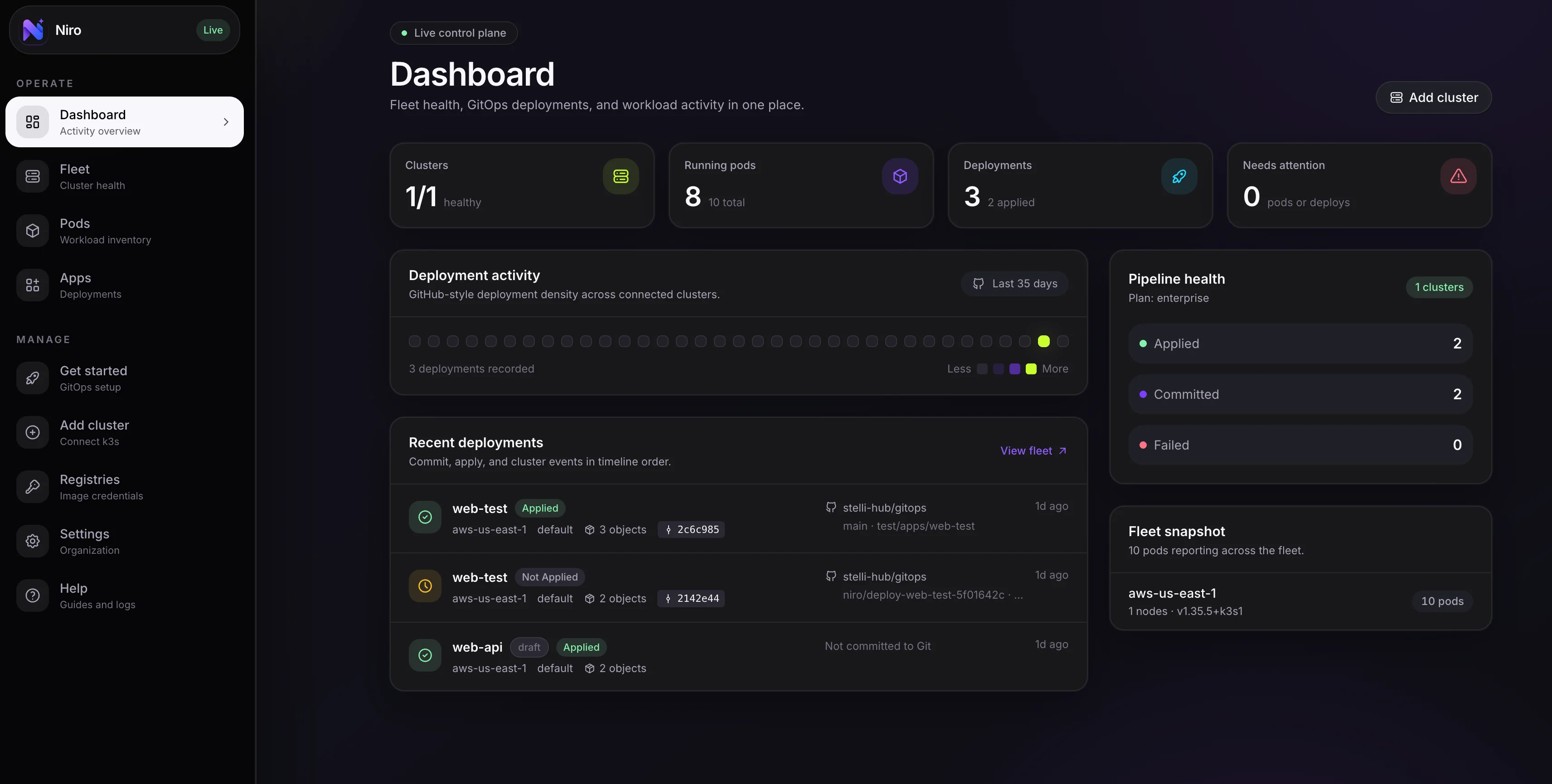
Niro's dashboard combines fleet health, workload incidents, deployment state, and remediation context.
Live health
Status rolls up from cluster heartbeats, node readiness, and active incidents.
Workload context
See pods, owners, restarts, images, events, and resource pressure together.
Incident trail
Alerts, policy findings, and timeline events keep failures explainable.
No public ports
The agent sends state over outbound HTTPS from private clusters.
Click any cluster to open its detail view.
Status rollup
The status badge is derived from active incidents:- Healthy — no active incidents
- Warning — at least one low or medium severity incident is firing
- Critical — at least one high severity incident is firing
- Unknown — the cluster has never sent a heartbeat (recently enrolled but agent not yet running)
- Offline — the last heartbeat was too long ago — a
cluster_offlineincident has fired
Cluster detail view
The cluster detail view gives you a deep look at a single cluster.Nodes tab
Shows all nodes with:- Status — Ready or not-ready conditions
- Roles — control-plane, worker, etc.
- Kubernetes version
- CPU — requested / allocatable / used (if metrics-server is installed)
- Memory — requested / allocatable / used
Workloads tab
A namespace-by-namespace breakdown of pods:- Pod count per namespace
- Phase breakdown (Running, Pending, Failed, Succeeded)
- Click a namespace to filter the pod list
Deployments tab
All Niro-managed deployments on this cluster:- Name — deployment name with a link to the detail page
- Namespace
- Status — last apply status (Succeeded / Partial / Failed)
- Last applied — time of last successful apply
- Sync — whether auto-sync with Git is enabled
Timeline tab
The cluster’s activity feed showing:- Agent restarts and version changes
- Kubernetes Warning events (from the cluster’s event stream)
- Deployment apply events (created, succeeded, failed)
- Policy finding changes
- Drift detection events
Pod inventory
The Pods page (/pods) shows a cross-cluster inventory of all pods across your fleet.
Columns
Filtering
Filter by:- Cluster — show only pods from specific clusters
- Namespace — filter by namespace name
- Phase — show only Failed or Pending pods to find problems quickly
- Search — filter by pod name, image, or namespace
Finding problem pods
Sort by Restarts (descending) to quickly find crash-looping pods. Sort by Phase to find pods stuck in Pending or Failed state. Click any pod to see its details: full container list, environment, volumes, events, and (if the log capability is enabled) the View logs button.Metrics
Node and pod CPU/memory metrics require metrics-server to be installed in your cluster. If metrics-server is not installed, usage columns show—.
To install metrics-server in k3s:
k3s ships with a lightweight metrics-server included. If you’re on a standard k3s installation, metrics should be available automatically. If they’re not showing up, check
kubectl top nodes to verify metrics-server is working.Activity timeline (org-wide)
The Timeline in the sidebar (or on the Settings page) shows an org-wide activity feed across all clusters. This is useful for MSPs or teams managing multiple clusters who want a single stream of all activity.Alerts and incident detection
Niro monitors your fleet for incidents automatically and can notify you via Slack, Discord, PagerDuty, or webhook. See Alerts & Incidents for details.Related
- Alerts & Incidents — incident detection and notification channels
- Stream Pod Logs — live log streaming from pods
- AI Incident Investigator — AI-powered root cause analysis
- Resource Inventory — browse all Kubernetes resources across the fleet
- Cost Monitoring — cluster and workload cost breakdown
- Clusters — cluster concepts and status