

Connect your first cluster
Start with a real cluster and a safe default: the Niro agent enrolls read-only, calls home over outbound HTTPS, and begins sending live fleet context without opening public ports.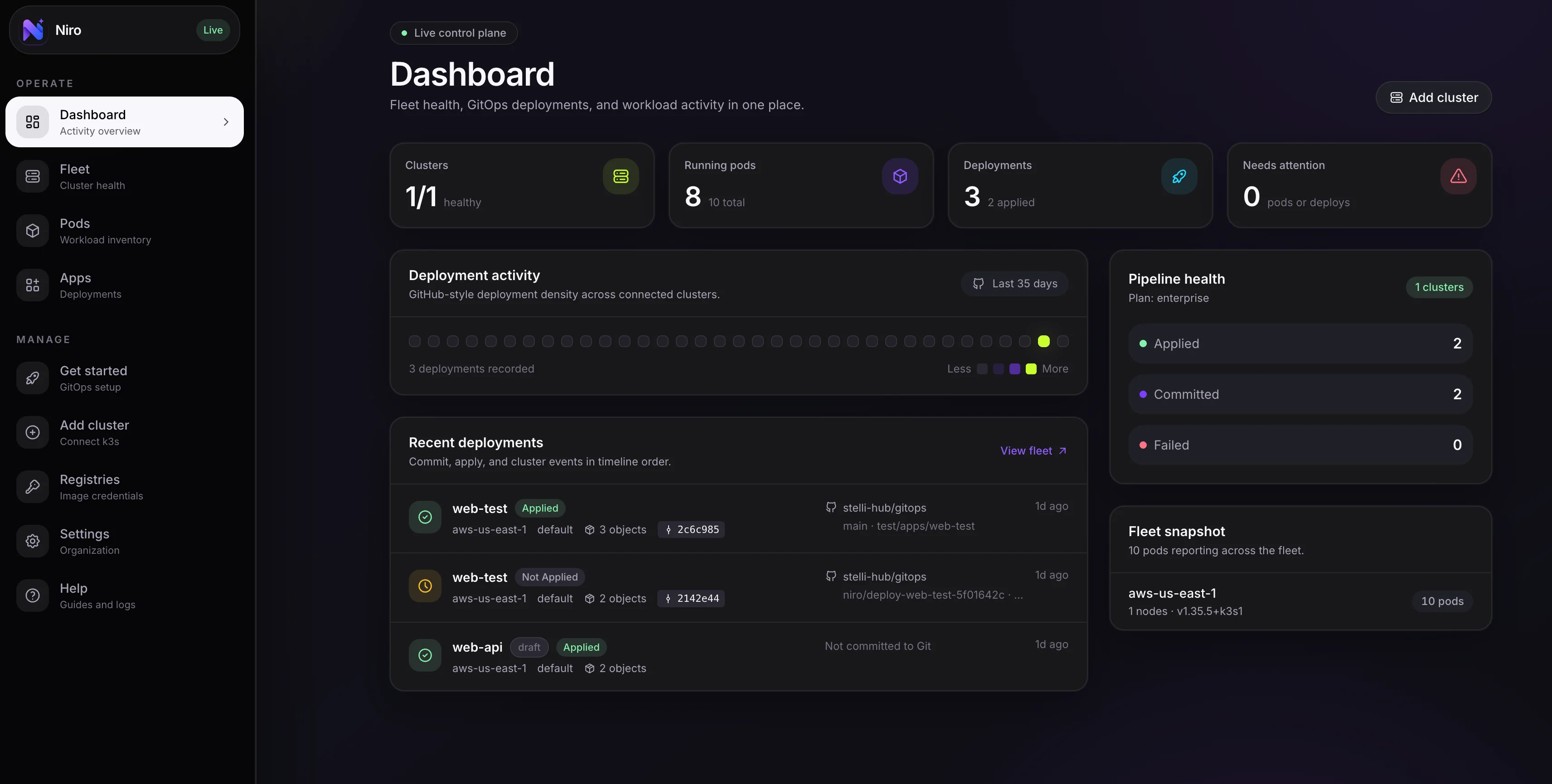
After enrollment, the dashboard shows live cluster health, workload status, incidents, and recent changes.
k3s cluster
Any k3s installation works. A single-node homelab cluster is enough.
kubectl access
Run the installer from a machine that can apply resources to the cluster.
Niro account
Start free. No credit card required for the first cluster.
Enroll the agent
1
Create a cluster in Niro
Sign in to app.niro.cx and choose Add cluster from the fleet view.Give the cluster a name like
homelab, edge-site-01, or customer-prod-1, then choose its environment. Niro generates a single-use enrollment token.2
Run the install command
Copy the command from the dashboard and run it with The installer creates the
kubectl access to the target cluster:niro-system namespace, applies read-only RBAC, deploys the agent, and stores the long-lived cluster key inside the cluster.3
Confirm the heartbeat
Return to the dashboard. Within about 15 seconds, your cluster should show a fresh heartbeat, node count, pod inventory, and health state.
The cluster is connected when it shows a green Healthy badge and a recent last heartbeat timestamp.
Deploy your first app
Niro gives you two delivery paths. Use the visual builder for a fast first deploy, then move production remediation through Git when your workflow needs review gates.- Visual builder
- GitOps remediation
The visual builder turns application settings into Kubernetes manifests and shows policy findings before you apply.Continue with Deploy an App for the full walkthrough.
1
Enable apply capability
The agent starts read-only. Re-run the installer with apply enabled before deploying workloads:
2
Open the builder
In the dashboard, go to Apps → Deploy app, then select your cluster.
3
Fill in the workload form
Enter the container image, ports, environment variables, resource limits, and private registry settings if needed.
4
Apply to cluster
Click Apply to cluster. Niro sends the generated manifests to the agent and shows per-object results within seconds.
Enable optional capabilities
Capabilities are explicit so cluster owners decide exactly what Niro can do.What’s next?
Monitor your fleet
Use cluster health, pod inventory, and timelines to understand operations across environments.
Stream pod logs
View live logs from any enabled cluster directly in the browser.
Set up alerts
Get notified when incidents fire and trigger AI investigations on Pro.
Add private registries
Pull private images with scoped registry credentials and image pull secret injection.